Password or SSH Key: Which Should You Use to Log Into Your Server?
Every tutorial tells you to use SSH keys instead of passwords. Very few explain what a key actually is, why it is better, or what happens if you lose one — which is exactly the question stopping most people from switching. Here is the whole picture, in plain terms, including the part where you avoid locking yourself out.
Start with what your server is dealing with
Put a server on the internet with password login enabled and leave it alone for a day. Then look at its logs. You will find thousands of login attempts from addresses all over the world, trying root, admin, ubuntu, test, and a long list of common passwords.
Nobody targeted you. Automated software continuously scans the internet for machines accepting password logins and tries its luck. It is background weather, and it never stops.
Against that, your defense is a password a human being had to be able to remember and type. Even a good one is a short string of characters. Against an endless, patient, automated stream of guesses, "short enough to remember" is the fundamental weakness — and no amount of adding punctuation marks changes the shape of the problem.
What an SSH key actually is
An SSH key is not a longer password. It works in a genuinely different way, and the difference is where all the safety comes from.
You generate a pair of files that are mathematically related:
- The private key stays on your computer. It is yours, it is secret, and it never goes anywhere.
- The public key gets copied onto the server. It is not secret at all — you could post it publicly without harm.
When you connect, the server does not ask for your secret. Instead it sends your computer a challenge that can only be answered correctly by someone holding the matching private key. Your computer answers it and the server lets you in.
Read that once more, because it is the whole point: your secret is never transmitted. It does not cross the network. It is not stored on the server. It cannot be intercepted in transit or stolen in a server breach, because it was never there.
Compare that with a password, which you hand over to the server every time you log in, and which must exist on the server in some form for it to check.
An analogy that holds up. A password is a secret word you shout at the door each time. An SSH key is a lock you install on the door, where you keep the only key that fits. Anyone can inspect the lock — it gives nothing away. And there is no word to overhear.
Side by side
| Password | SSH key | |
|---|---|---|
| Length of the secret | Short enough to memorize | Long enough to be unguessable |
| Can it be guessed? | Given enough attempts, yes | Not within any practical timeframe |
| Does the server hold your secret? | It holds something derived from it | No — only the public half |
| Sent over the network? | Yes, on every login | Never |
| Reused elsewhere? | Often, by humans | No — generated, not chosen |
| If the server is breached | Your credential is at risk | Nothing usable is exposed |
| Losing access | Reset it | No reset — you need another way in |
| Setup effort | None | A few minutes, once |
One row favors passwords: recovery. Forget a password and you reset it. Lose a private key and there is nothing to reset — the whole design depends on the secret being unrecoverable. That is the real cost of keys, and it is manageable, but only if you plan for it rather than discover it.
Making the switch without locking yourself out
Almost every horror story about SSH keys is the same story: someone disabled password login before confirming that key login worked. Do these steps in order and that cannot happen to you.
-
Create a key pair
On Windows, macOS, or Linux, open a terminal and run
ssh-keygen -t ed25519 -C "your-name". Accept the default location. You will get two files:id_ed25519(private — keep it) andid_ed25519.pub(public — the one you copy out). - Set a passphrase when prompted This encrypts the private key file. Do not skip it; the reasoning is below.
-
Copy the public key to the server
Log in with your password one more time and append the contents of the
.pubfile to~/.ssh/authorized_keyson the server. Many hosting providers also let you paste a public key into their control panel. -
Fix the permissions
Run
chmod 700 ~/.sshandchmod 600 ~/.ssh/authorized_keyson the server. SSH deliberately ignores keys in files that others could read, and this silent refusal is the single most common reason a correctly copied key does not work. - Test it — in a new session, without closing the old one Open a second connection using the key. Keep your working password session open until the key login succeeds. This is the step that saves people.
-
Only now, turn off password login
On the server, set
PasswordAuthentication noin/etc/ssh/sshd_configand restart the SSH service. Your logs will go quiet almost immediately.
Before you disable passwords, make sure you have a second way in. A second key on a different machine, your hosting provider's web console, or another administrator's access. If your only key is on one laptop and that laptop dies, a server with password login disabled and no console access is genuinely unreachable.
About that passphrase
A passphrase encrypts the private key file itself, and it protects against a specific scenario that keys otherwise handle poorly.
Without one, the key file is the credential. Anyone who obtains a copy — a stolen laptop, a mistakenly synced backup folder, a shared machine, a key accidentally committed to a repository — can log into every server that trusts it, immediately. With a passphrase, a copied key file is an encrypted blob and useless on its own.
The usual objection is that typing it constantly would be tedious. It is not, because you do not have to. An SSH agent unlocks the key once and holds it for your working session, so you type the passphrase at most once a day. Windows, macOS, and Linux all include one.
When a password is still a reasonable choice
Keys are the right default, but "always, no exceptions" is not honest advice. Passwords remain sensible for:
- Machines on your private network only — a home lab or a device on an isolated network is not exposed to the internet-wide guessing traffic that makes passwords dangerous.
- Temporary servers — something you created this morning and will destroy this afternoon.
- Servers you do not control — a client's machine or shared hosting where you cannot add keys.
- Emergency access — a deliberately maintained fallback route, with a strong unique password, for the day your key is unavailable.
For anything with a public address and anything holding real data, use keys.
Where your keys live
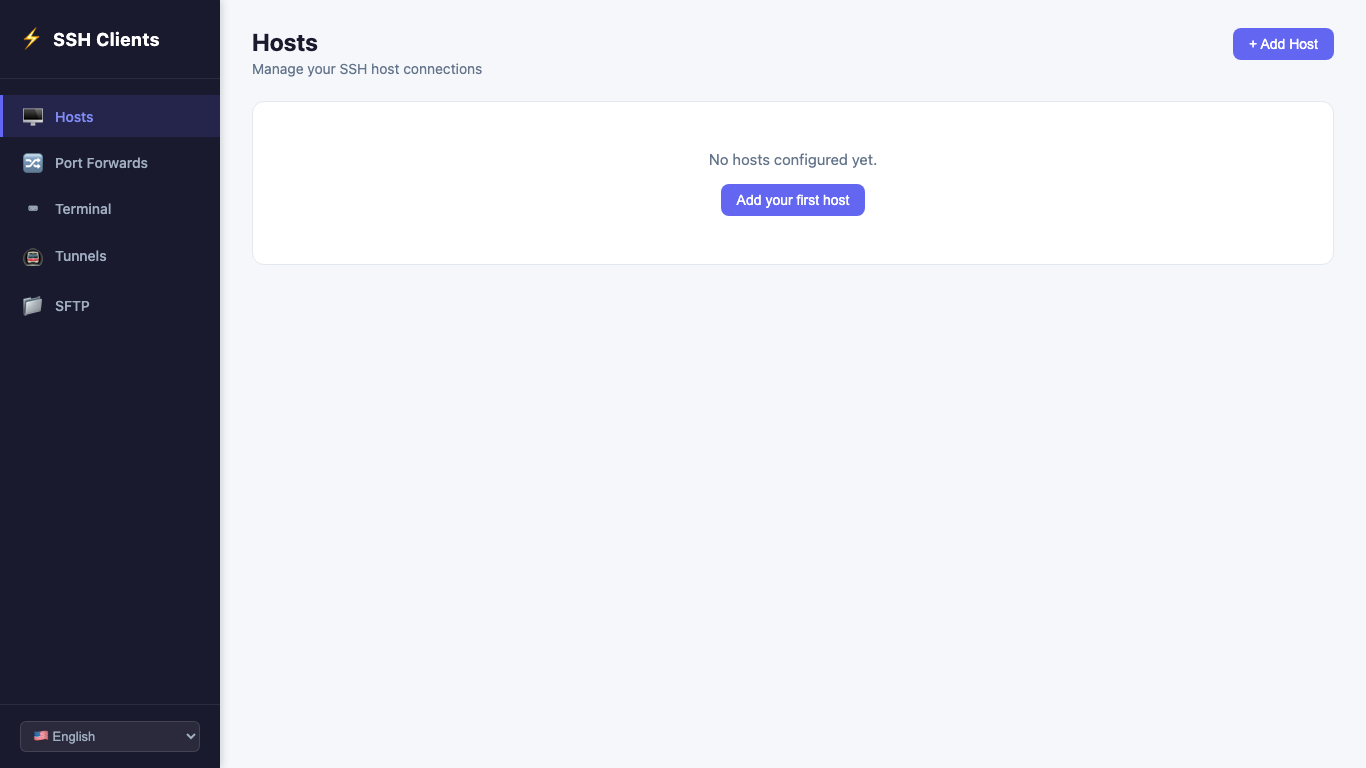
Whatever client you use, keep track of which servers use which method. In TurboSSH, each saved host shows its authentication type, so the servers still on passwords are visible in the list rather than something you have to remember to audit.
TurboSSH supports both methods, accepts the common key formats, handles passphrase-protected keys, and includes a Test button — which is exactly the tool you want at step five above. You can confirm a key works before you disable password login, without gambling on it.
It also stores everything locally on your own machine. Your keys and connection details are not synced to any service, which is the right default for credentials that grant access to your servers.
Frequently asked questions
Which key type should I generate?
Use Ed25519 — ssh-keygen -t ed25519. It is modern, secure, and produces short keys. Use RSA with at least 4096 bits only when you need to work with older systems that do not support Ed25519.
Can I use one key for all my servers?
Yes, and it is normal. Think one key per person, not one per server. Use separate keys when you want to revoke access to one group of machines independently — for example, keeping personal and client work apart.
I copied my key but the server still asks for a password. Why?
Almost always file permissions. Run chmod 700 ~/.ssh and chmod 600 ~/.ssh/authorized_keys on the server. SSH refuses to use keys from files other users could read, and it does so without explaining why. After that, check that you copied the .pub file and not the private key, and that it landed as a single unbroken line.
What if my laptop is stolen?
Remove that key's line from ~/.ssh/authorized_keys on every server that trusts it, using another way in. Access from that key stops instantly. This is much cleaner than a stolen password, which may have been reused in places you have forgotten. If the key had a passphrase, you also have time on your side — the file is not usable without it.
Do keys make me immune to attacks?
No. They eliminate password guessing, which is the overwhelming majority of the noise, and that is a large win. They do not protect against a compromised machine, a vulnerable application on the server, or an unrestricted key sitting in a backup. Keys are the foundation, not the whole building.
Should I disable password login entirely?
For internet-facing servers, yes — once key login is confirmed working and you have a documented second way in. That combination is what makes it safe rather than reckless.
In short
A password is a short secret you send to the server on every login. An SSH key is a long secret that never leaves your computer. That single difference removes the entire category of attack that servers face constantly, which is why the advice is so consistent.
The setup takes a few minutes. The only real rule is ordering: prove the key works, make sure you have a second way in, and only then close the door behind you.
Keys and passwords, both handled locally
TurboSSH supports password and key authentication with passphrase-protected keys, shows each host's method at a glance, and stores everything on your own machine.
Get TurboSSH on Microsoft Store