How to Upload a Large File to a Server Without Starting Over When It Fails
The upload is at 90% after forty minutes. Your laptop sleeps for a moment, or the Wi-Fi switches access points, and the progress bar resets to zero. Nothing about this is rare — long transfers meet interruptions all the time. What decides whether it costs you forty seconds or another forty minutes is whether your tool can continue from where it stopped.
Why long transfers break
It is tempting to treat a failed upload as a sign that something is wrong. Usually nothing is. The ordinary events that end a transfer are all things that happen on a normal working day:
- Your laptop sleeps, or you close the lid to walk to a meeting.
- Wi-Fi hands you from one access point to another.
- A VPN drops and reconnects.
- The server closes a connection that has been idle at the protocol level.
- You close the window, or the application, because you thought it had finished.
Each is individually unlikely in any given minute. Over the forty minutes a multi-gigabyte upload takes, one of them happening is close to expected. The useful question is not how to prevent interruptions — you cannot — but what happens afterwards.
What "resuming" actually means
A resumable transfer is built on a simple idea. Before writing anything, the tool asks the destination a question: how many bytes of this file do you already have? Whatever the answer is, both sides skip ahead to that point and carry on from there.
If 3.6 GB of a 4 GB file arrived before the connection died, the destination reports 3.6 GB, and only the remaining 400 MB is sent. The work already done is kept.
This is why drag-and-drop in a plain file manager is so frustrating for large files. Most of those tools have no concept of a partial file — a transfer either completed or it did not, and "did not" means starting from zero.
The offset has to come from the destination, not from a saved counter. If a tool remembers "I sent 3.6 GB" and trusts that number later, it can be wrong: a process killed at the wrong moment may have counted bytes that never reached the disk. Asking the destination how large the file actually is gives an answer that is true by definition.
The trap: a file that is the right size and still wrong
Here is the failure that catches people out, because everything looks fine.
Suppose the connection did not die cleanly. It degraded, and a stretch of bytes near the end of what arrived is damaged. The destination still reports 3.6 GB. The transfer resumes at 3.6 GB, appends the final 400 MB perfectly, and finishes. The file is now exactly 4 GB — precisely the size it should be.
It is also corrupt, and no size check will ever tell you. You find out later, when the archive will not extract or the database dump fails to restore, long after you have deleted the original.
The only reliable answer is to compare the contents, not the length. After the last byte, a checksum of the destination file is compared against the source. If they differ, the file is wrong regardless of how right its size looks.
What a tool does after detecting a mismatch matters just as much. The damaged file has to be deleted and the offset reset to zero, because a retry that resumes on top of corrupt bytes just rebuilds the same broken file.
Transfers should not be tied to the window that started them
The second half of the problem is where the transfer lives.
In many tools, an upload belongs to the screen that launched it. Navigate away from the file browser and the transfer is cancelled. This turns a long upload into a hostage situation: you sit and watch a progress bar because leaving costs you the whole transfer.
A background queue reverses that. The transfer belongs to the application, not to a page, so it keeps running while you open a terminal, browse a different server, or check something else entirely.
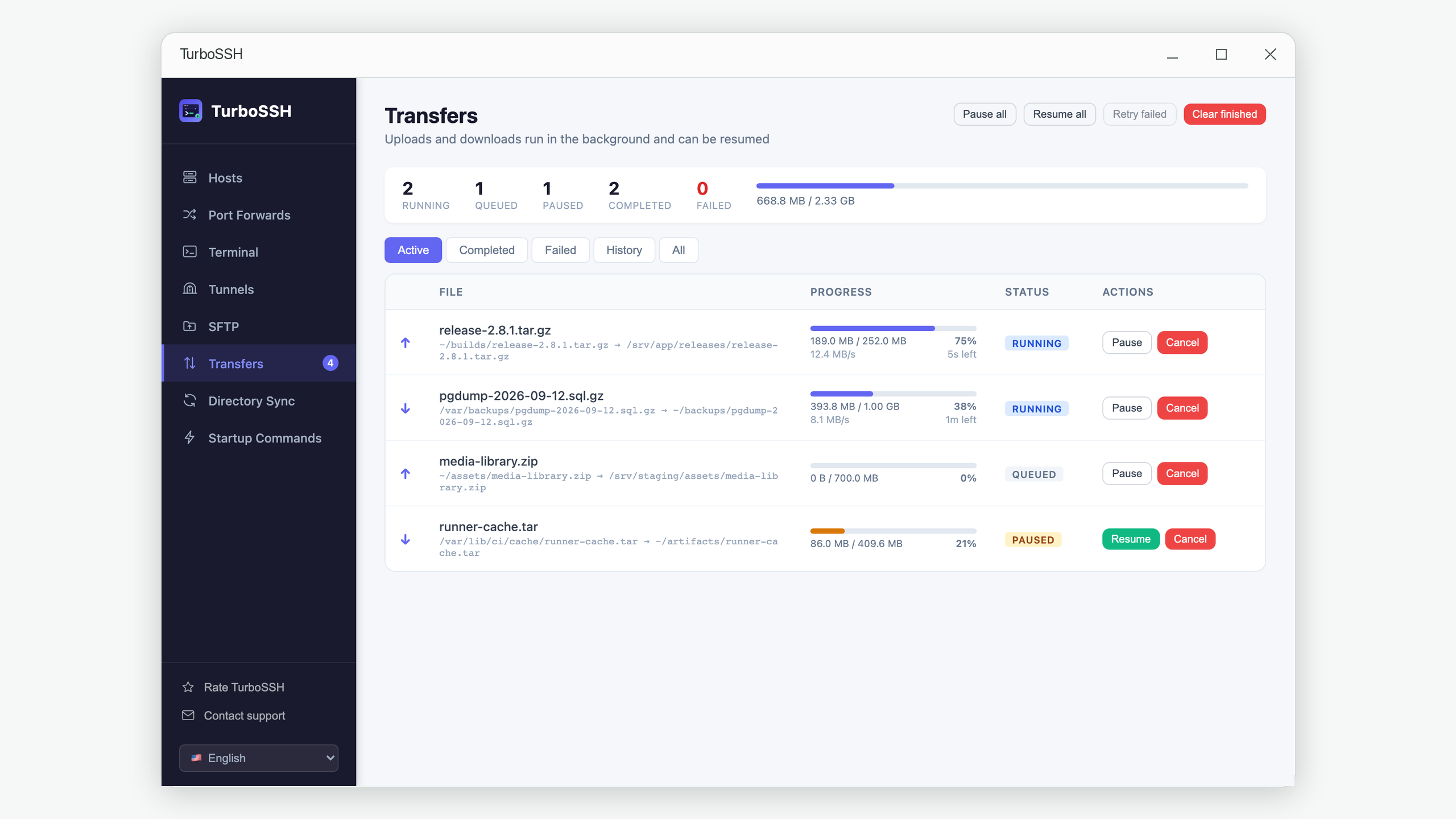
In TurboSSH every upload and download goes onto this queue. The Transfers screen shows each file with its progress, current speed and estimated time remaining, and you can pause, resume or cancel any of them individually — or retry everything that failed at once, which matters when a dropped connection took twenty files down with it.
Because the queue persists, the history survives restarting the application. A transfer that was still running when you quit comes back paused with its offset intact, ready to continue rather than begin again.
What to look for in any tool
None of this is specific to one application. If you move large files to servers regularly, these are the properties worth checking for:
| Property | Why it matters |
|---|---|
| Resumes from a byte offset | An interruption costs you the remaining bytes, not all of them |
| Reads the offset from the destination | A saved counter can be wrong after a crash; the file's real size cannot |
| Verifies contents, not just size | Corruption before an interruption produces a right-sized, wrong file |
| Deletes the file on a failed check | Otherwise the retry appends to the same corrupt bytes |
| Runs in the background | You can keep working instead of guarding a progress bar |
| Retries failures in bulk | One dropped connection can fail dozens of files at once |
A practical routine for very large files
Beyond picking the right tool, two habits help:
Keep the source until the destination is verified. Not until the transfer says "done" — until something has actually compared the two. This is the whole reason the size trap is dangerous: it encourages deleting the original at exactly the wrong moment.
Compress before sending, when the file compresses well. A database dump often shrinks dramatically. Less data on the wire means less time exposed to interruptions, and it is the one variable you fully control.
What is not worth doing is splitting the file into parts by hand. That was a sensible workaround when tools could not resume; with a tool that can, you are doing manually and imperfectly what the offset does automatically.
Frequently asked questions
Can I resume a transfer after restarting my computer?
With a queue that saves its state, yes. The unfinished transfer returns in a paused state with its byte offset preserved, and resuming continues from that point. What matters is that the offset is re-read from the destination file at that moment rather than trusted from before the restart.
Is resuming safe if the file changed on my computer in the meantime?
No, and this is a real risk. Resuming assumes the source is the same file it was. If you edited or regenerated it, the two halves will not belong together. When the source has changed, transfer it fresh instead of resuming.
What if the destination file is larger than the source?
Then the two files do not correspond and no offset makes sense — this is usually a leftover from a different file with the same name. The correct response is to transfer from the beginning rather than attempt anything incremental.
Does verification work on every server?
Usually, but not always, because it depends on a hashing command being available remotely. Different systems provide different ones, and stripped-down containers sometimes have none at all. A sensible tool tries the common variants in turn and, if none exist, reports the check as skipped rather than failing a transfer that was probably fine.
Will pausing a transfer lose my progress?
It should not. Pausing stops writing and keeps the offset, so resuming continues from there — the same mechanism that recovers from an unexpected interruption, just triggered deliberately.
In short
Interruptions are not the problem. Every long transfer will meet one eventually, and no amount of care prevents that. The problem is a tool that treats an interruption as a reason to throw away everything it already did.
Resuming from the destination's real byte offset turns a lost evening into a lost minute. Verifying contents afterwards is what keeps that speed from quietly costing you a corrupt file.
Transfers that survive the interruption
TurboSSH runs every upload and download through a background queue: resume from where it stopped, verify the result, and keep working while it runs.
Get TurboSSH on Microsoft Store