How to Stop Retyping the Same Commands Every Time You Log Into a Server
Connect to the server. Change into the project folder. Activate the environment. Start tailing the log. Four commands, every single time, before any actual work begins — and if you have three projects on two servers, you are keeping six of these routines in your head. There are three good ways to stop doing this, and they suit different situations.
The problem is smaller than it feels, and worse than it looks
Typing four commands takes about fifteen seconds. That is not what makes this worth fixing.
What makes it worth fixing is everything around it. You have to remember the routine — the exact folder, the exact environment name, the right order. When you come back to a project after two months, that memory is gone and you spend five minutes reconstructing it. When a colleague joins, the routine lives nowhere except in your habits, so you explain it in a chat message they will lose. And when you are juggling several servers, you eventually run the right commands on the wrong one.
The fifteen seconds is trivial. The remembering is not.
Three approaches
All three do the same thing — run your opening commands for you — but they store the routine in different places, and that difference is what should decide your choice.
| Approach | Where the routine lives | Best for |
|---|---|---|
| Shell alias | On the server | Routines you want available to anyone who logs into that server |
| Client startup commands | In your SSH client | Your own workflow, across many servers, no server changes needed |
| Shell profile | On the server, runs every login | Universal settings only — rarely the right choice for project work |
Approach 1: a shell alias on the server
An alias gives a sequence of commands a short name. Add it once to your shell's configuration file on the server:
# In ~/.bashrc on the server
alias work='cd /var/www/myapp && source venv/bin/activate'
Reload the file with source ~/.bashrc, and from then on typing work runs the whole sequence.
Where this shines: the routine is attached to the server, so it works no matter which computer or client you connect from, and everyone using that account gets it.
The catch: you still have to remember to type work, and you have to remember which alias exists on which server. You have replaced four things to remember with one — a real improvement, but not zero. Setting them up on twelve servers also means editing twelve files.
Approach 2: let your SSH client send the commands
The alternative is to store the routine on your side and have your client type the commands for you the moment a session opens. Nothing on the server changes at all.
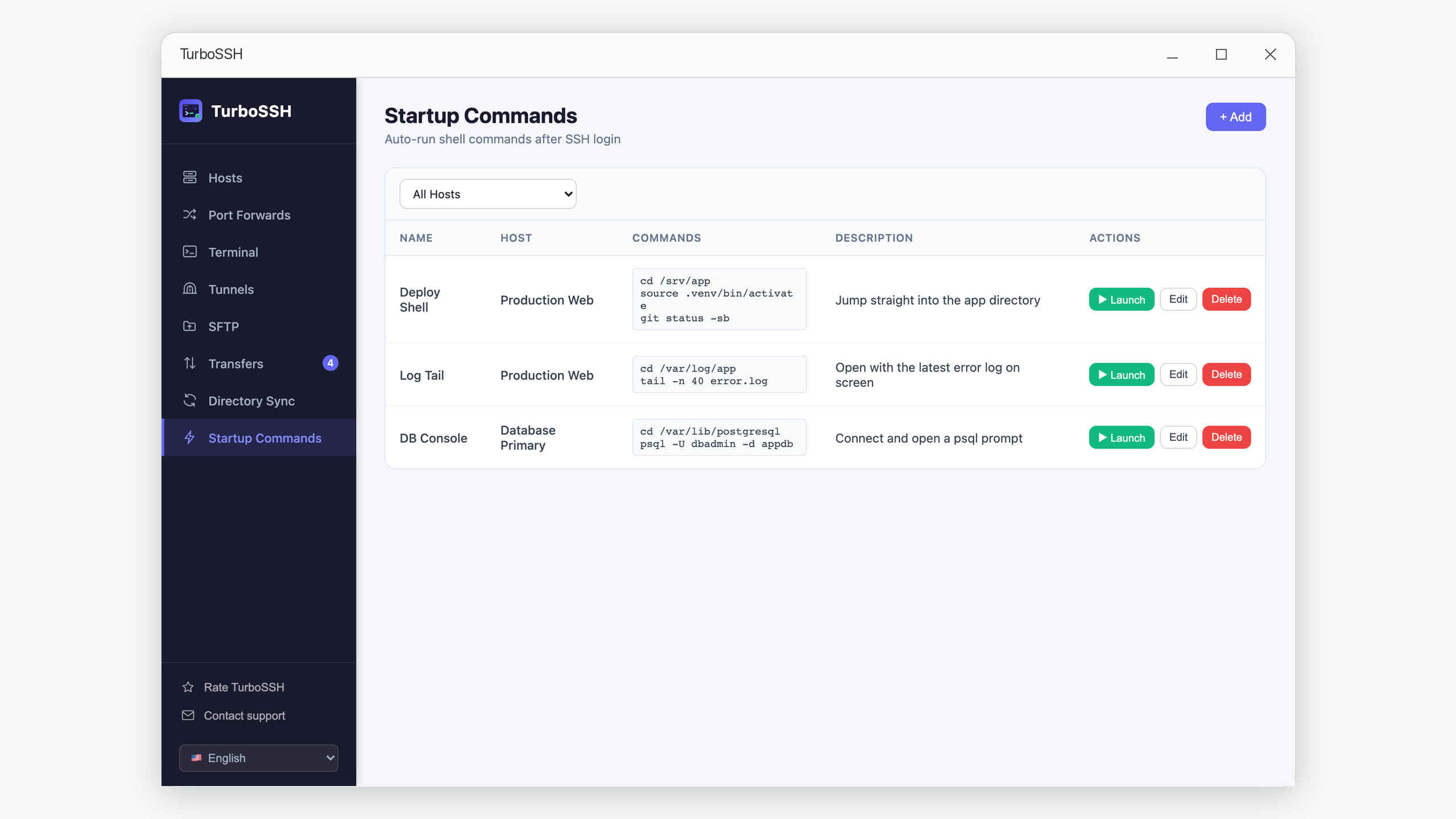
In TurboSSH this is the Startup Commands screen. You create a named set, pick the host it belongs to, and write one command per line:
cd /var/www/myapp
source venv/bin/activate
git status
Launching that set opens a terminal to the host and enters the commands in order. You arrive at a prompt with the work already set up.
Where this shines: you can define many sets for the same server — one per project — and each gets a name you will still understand next year. It requires no permission to change anything on the server, which matters on machines you do not administer. And because the routine is stored as data rather than habit, it is visible: you can look at it, edit it, and read it back months later.
The catch: the routine lives with your client, so it is yours rather than the team's, and it travels with your setup rather than with the server.
Worth understanding: the commands are typed, not executed separately. Startup commands are sent into your live shell exactly as if you had typed them, one after another. This is a feature, not a limitation — it means everything behaves normally. Changing directory actually leaves you in that directory. Activating an environment stays active. A command that starts something long-running keeps running in front of you, and you can stop it with Ctrl-C like anything else.
Approach 3: your shell profile — use sparingly
You can also put commands directly in ~/.bashrc or ~/.zshrc without wrapping them in an alias, and they will run on every login.
This is almost always a mistake for project setup, and it is worth knowing why. That file runs for every connection to the account — including automated ones. Deployment scripts, backup jobs, and file transfers all trigger it. A cd into a project folder puts every automated task in an unexpected place. Something slow adds that delay to every operation. Something that prints output can genuinely break tools that expect clean output, which produces some of the most baffling debugging sessions in server work.
Keep your profile for things that are true always and everywhere — your editor preference, your prompt, your PATH. Put project routines in an alias or in your client.
What to actually put in a startup routine
Once you have somewhere to put them, the question becomes what belongs there. Good candidates are commands that are identical every time and safe to repeat.
Get into position
cd /var/www/myapp
source venv/bin/activate
The most common routine by far, and the one you should stop typing first.
Show me the current state
cd /var/www/myapp
git status
docker compose ps
Instead of arriving at an empty prompt, arrive at an answer to "what is going on here?" This is particularly good for a server you check on rather than work in.
Start watching the logs
cd /var/log/myapp
tail -f app.log
Turns a whole terminal tab into a live monitor with one click. Because the command runs in your live shell, Ctrl-C stops it and leaves you at a normal prompt.
Check the machine's health
df -h
free -m
uptime
A quick vital-signs check on connect. Useful on any server where disk space has ever surprised you.
What not to put in a startup routine. Anything destructive, anything that deploys, and anything that prompts for confirmation. A routine that runs automatically should be something you would be happy to run twice by accident. Save the irreversible commands for the moments you deliberately type them.
One server, several projects
The case that really rewards this approach is a single server hosting several things. The alias approach gets awkward here — you end up with work1, work2, workapi, and no memory of which is which.
Named sets handle it cleanly, because the name is part of the routine rather than something you have to encode into a short command:
- Storefront — dev → into the storefront folder, environment activated, git status
- Storefront — logs → into the log folder, tailing the live log
- API — dev → into the API folder with its own environment
- Nightly job — check → into the jobs folder, show the last run's output
All four belong to the same host. You launch the one that matches what you came to do, and each opens in its own tab, so you can have the storefront and its logs side by side.
Frequently asked questions
What happens if one of the commands fails?
The shell reports the error and moves on to the next command, exactly as if you had typed them yourself. You end up at a normal prompt with the error visible on screen, so you can see what went wrong and fix it by hand.
Can I use a routine that starts something long-running?
Yes — tail -f and similar commands work well as the last line of a routine. The command keeps running in your terminal and Ctrl-C stops it. Just put it last, since anything after it will not run until it ends.
Do startup commands work with SSH key authentication?
Yes. The routine runs after you are logged in, so it is unaffected by how you authenticated. If you are still deciding between keys and passwords, see our comparison of the two.
Is it safe to put a password in a startup command?
No — avoid it. Commands you type end up in your shell history on the server, and a password sitting there is a password waiting to be found. If something needs credentials, use SSH keys, an environment file with restricted permissions, or a secrets tool.
Should I use aliases or client-side startup commands?
Use an alias when the routine belongs to the server and should be available to everyone using it. Use client startup commands when the routine is yours, when you have several per server, or when you cannot or should not modify the server. Many people end up using both.
In short
The commands you type at the start of every session are a routine that currently lives only in your memory. Written down somewhere — an alias on the server or a named set in your client — it stops being something to remember and starts being something to click.
The time saved is minor. Not having to reconstruct how a project works after two months away is not.
Save the routine, not the habit
TurboSSH lets you store named command sets for each server and launch them in one click — with as many sets per host as you have projects.
Get TurboSSH on Microsoft Store