How to Connect to a Remote Database From Your Own Computer
You have a database running on a server somewhere. You have a database tool installed on your laptop. Connecting the two seems like it should take thirty seconds — and instead you get a connection timeout, every time. Here is why that happens, why the obvious fix is a bad idea, and the approach professionals actually use.
The problem
You open your database tool, type in the server's address, the database port, your username and password, and hit connect. After ten or twenty seconds you get some version of:
Can't connect to MySQL server on '203.0.113.10' (timed out)
Connection refused
Operation timed out after 30000 milliseconds
Nothing is wrong with your password. Nothing is wrong with your database. The connection never reached it.
Why this happens
Two separate things are usually standing in the way, and it helps to understand both because they fail differently.
First, the database is probably only listening to itself. By default, most database software accepts connections only from programs running on the same machine. Anything arriving from outside is not refused so much as never heard.
Second, the server's firewall almost certainly blocks the port. A well-configured server allows the port you connect with over SSH and very little else. Your database port is not on that list.
Neither of these is a misconfiguration. They are both doing their job. A database port left open to the internet gets found by automated scanners remarkably fast — often within hours of being exposed — and then it is subjected to a steady stream of login attempts forever.
The fix you will find on forums, and why to avoid it. Plenty of answers will tell you to change the database to listen on all addresses and open the port in the firewall. This works. It also means the only thing standing between your entire dataset and the open internet is one password, protected by software that was never designed to be the outermost layer of your defenses. Do not do this to reach your own database. You do not need to.
The better approach: borrow the connection you already have
Here is the thing worth noticing: you can already reach that server. You log into it over SSH all the time. That connection is encrypted, it is already permitted through the firewall, and it already proves who you are.
An SSH tunnel lets you carry other traffic inside that same connection. You pick an unused port on your own computer and declare that anything sent to it should travel through your SSH connection and come out on the server, addressed to the database.
The effect is that the database appears to be running on your own machine. You point your database tool at 127.0.0.1 and it just works. Meanwhile, from the database's point of view, the connection arrived from the server itself — the one source it was always happy to accept. Nothing had to be opened, and nothing had to be reconfigured.
The chain looks like this:
Your database tool
      ↓  connects to 127.0.0.1:3307   (a port on your own machine)
  The tunnel
      ↓  travels inside your encrypted SSH connection
  The server
      ↓  hands the traffic to localhost:3306
  Your database  ✓
People often call this "local port forwarding," and if you have seen the command-line version it is the one with the -L flag. You do not need to memorize the flag to use the idea.
Setting it up, step by step
The example below uses a MySQL database, but the shape is identical for PostgreSQL, Redis, MongoDB, or anything else that speaks over a port. Only the numbers change.
- Save the server you already log into Give it a recognizable name, its address, and the username and authentication you normally use. This is the same login you would use to open a terminal on that machine — the tunnel does not need any extra permission.
-
Decide which local port to use
Any free port on your computer works. Picking one that is close to but not identical to the real port —
3307for MySQL,5433for PostgreSQL — keeps things clear if you also have a database installed locally. -
Describe the destination
The remote side is written from the server's perspective. Because the database runs on the same machine you are connecting to, the remote host is
localhostand the remote port is the database's real port,3306. This is the step people most often get wrong — see the section below. - Start the tunnel and leave it running Once it is active, it stays up until you stop it. Any tool on your computer can use it, not just the one you set it up for.
-
Point your database tool at your own machine
Host
127.0.0.1, port3307, and then your normal database username and password. Your database credentials are unchanged; only the address you dial has moved.
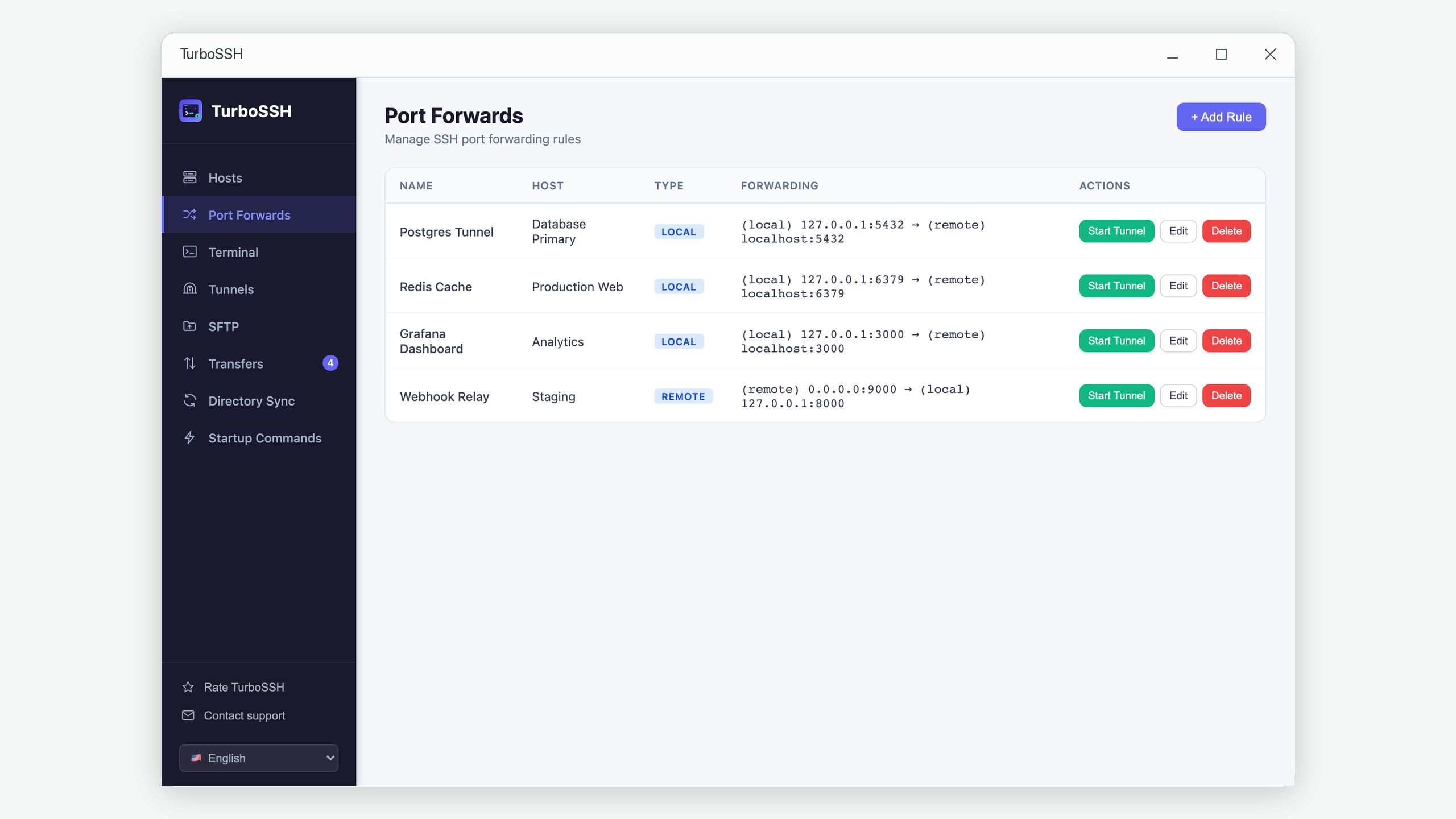
In TurboSSH, this is the Port Forwards screen. You add a rule with a name, the host it belongs to, the local side, and the remote side. The rule is stored, so the next time you need that database you start it with one click instead of reconstructing it.
The mistake almost everyone makes once
When filling in the remote side, it is natural to type the server's public address again — the same 203.0.113.10 you used to connect. It looks right. It is not.
Every part of the remote side is interpreted by the server, from where the server is standing. By the time that instruction is read, you are already on the machine. Asking for localhost there means the server itself, which is exactly where your database is listening. Asking for the public address sends the traffic back out to the internet and straight into the firewall you were trying to get around.
| Field | What to enter | Whose point of view |
|---|---|---|
| Local host | 127.0.0.1 | Your computer |
| Local port | 3307 — any free port you choose | Your computer |
| Remote host | localhost — almost always | The server |
| Remote port | 3306 — the database's real port | The server |
There is one case where the remote host is not localhost: when the database lives on a different machine that only your server can reach — a private network address like 10.0.1.20, or a managed database that only accepts connections from inside your cloud network. Then you put that address in the remote host field and let the server act as your entry point into the private network. The principle is unchanged: write the address the way the server would.
Confirming it works
If the tunnel starts but your database tool still cannot connect, work through it in order rather than changing settings at random.
- Did the tunnel actually start? A rule that fails on startup usually says so immediately. The most common reason is that the local port you chose is already in use by something else — pick another and try again.
- Is your tool pointed at your own machine? Once a tunnel exists, the server address belongs nowhere in your database tool. It should say
127.0.0.1and your chosen local port. - Does the connection open and then immediately close? That means the tunnel worked and the database answered. You are now getting a real database error — usually a username, password, or permission issue — which is progress, not a setback.
- Is the remote side pointing at the right place? If nothing responds at all, re-read the remote host field with the server's perspective in mind.
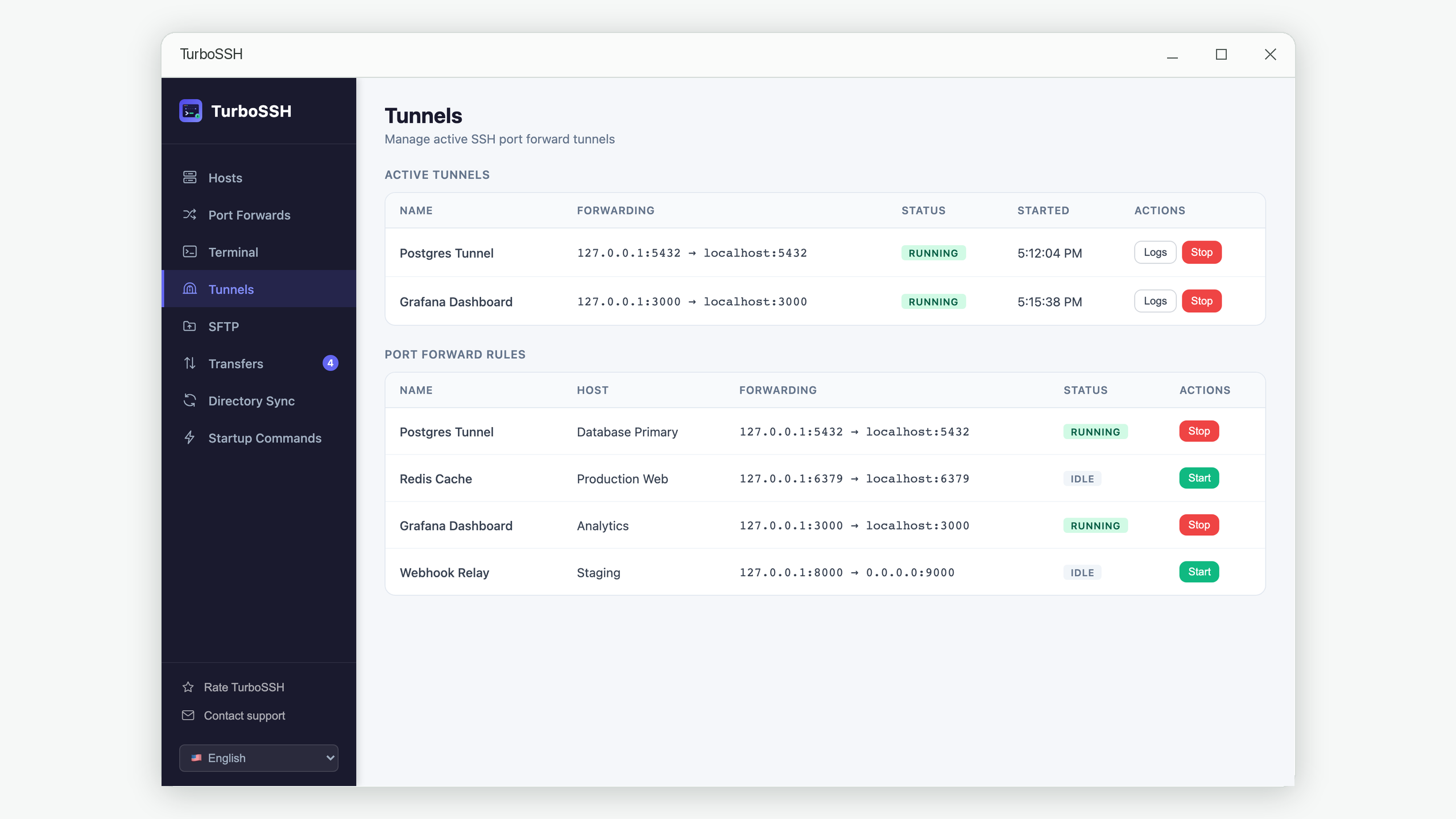
This is where a log genuinely earns its keep. TurboSSH keeps a running log for each active tunnel, so you can see the moment it starts listening and each connection that flows through it. If your database tool connects and the log stays silent, the tool is not reaching the tunnel at all — which points you at your tool's settings rather than at the server.
A few things worth knowing
The tunnel is not limited to one program
Once 127.0.0.1:3307 is live, anything on your computer can use it. Your database GUI, a migration script, a local copy of your application reading from the production database for an afternoon of debugging — all at the same time, through one tunnel.
It stops when you stop it
Unlike opening a firewall port, a tunnel leaves nothing behind. Stop it and the door is gone. That makes it perfectly reasonable to keep tunnels for sensitive systems and only start them for the minutes you need them.
It works for far more than databases
Anything that speaks over a port can travel the same way: an internal dashboard on the server's port 3000, a message queue's admin panel, a caching server, a service that deliberately never got a public address. Same rule, different numbers.
Rule of thumb. If a service is one you alone need to reach, do not give it a public address — reach it through the connection you already have. Fewer open ports is the single cheapest security improvement most servers can make.
Frequently asked questions
Do I need to change anything on the server?
No. That is the main advantage of this approach. The database keeps its existing configuration, the firewall keeps its existing rules, and the traffic arrives looking like it came from the server itself — which is what the database already permits.
Is this safe enough for a production database?
Yes, and it is meaningfully safer than the alternative. The traffic is encrypted inside your SSH connection, it requires the same login that already protects the server, and it exposes nothing new to the internet. Compare that with opening a database port publicly, where the database's own password check becomes your outermost defense.
Can I keep several tunnels open at once?
Yes. Different databases, different servers, different ports — they run independently. Just give each one its own local port so they do not collide.
What happens if my network drops?
The tunnel goes down with the SSH connection underneath it, and your database tool will report a lost connection. Start the tunnel again and reconnect. If your connections drop more often than you would expect, that is usually an idle-timeout problem rather than a network one — we cover the cause and the fix in why your SSH connection keeps dropping.
Does the database password travel over the tunnel?
It does, and it is encrypted along with everything else for the whole journey between your computer and the server. This is a real improvement over connecting to an exposed database port, where the protection depends entirely on whether that particular database was set up to encrypt its own traffic.
In short
When a remote database refuses your laptop, the instinct is to open a door. The better move is to use the door you already walk through every day. An SSH tunnel takes about a minute to set up, requires no changes to the server, exposes nothing to the internet, and disappears when you are done with it.
Set the rule up once, save it, and reaching that database becomes a single click for as long as the server exists.
Save your tunnels instead of rebuilding them
TurboSSH stores your servers and forwarding rules together, so a tunnel you configure once starts with a click — with live status and logs when something needs checking.
Get TurboSSH on Microsoft Store