How to Keep a Folder on Your Computer and a Folder on Your Server in Sync
You change four files locally, then drag the entire folder onto the server because working out which four is more effort than re-uploading all of it. It takes six minutes, most of it spent re-sending files that did not change. And the time you tried to be selective, you missed one — and spent an hour debugging a server running a file you thought you had replaced.
Why copying by hand goes wrong
Manually keeping two folders aligned fails in two directions, and you get to choose which.
Copy everything and it is correct but wasteful. Every run re-sends files that are byte-for-byte identical to what is already there. On a slow link, a folder of a few thousand files makes this genuinely painful, so you do it less often, which means the server spends more time out of date.
Copy only what you think changed and it is fast but unreliable. It depends on your memory of the last hour's work being complete. It usually is. The one time it is not, the symptom is a bug that makes no sense, because the code you are reading locally is not the code that is running.
A sync job removes the choice. It compares the two sides and transfers exactly the files that differ — fast because it skips the rest, reliable because it does not depend on anyone remembering anything.
How a sync decides what changed
Comparing file contents would be the thorough approach, but reading every byte of both sides defeats the purpose. So sync tools use two cheap signals instead.
Size first. If two files are different lengths they are certainly different, and this is instant to check.
Then modification time. If sizes match, a newer source file suggests an edit worth copying.
Timestamps need a tolerance, and this is not a detail. Different filesystems record time with different precision — some to the second, some rounded to two seconds. Compared exactly, timestamps that represent the same moment can differ by a fraction, so nearly every file looks modified and the sync copies the entire folder every single run. A tolerance of about two seconds makes the comparison meaningful.
There is a second, easily missed requirement: after copying a file, its modification time has to be applied to the copy. Otherwise the new file carries the time it was written rather than the time it was edited, it looks different from the source on the next comparison, and it gets copied again — forever. A sync that never seems to settle is usually failing at exactly this.
One direction, not two
The most important decision is which side is in charge.
A one-way sync names one folder the primary. Everything flows from it to the other side, and nothing ever flows back. If you edit the copy, your edit is not propagated — it is overwritten on the next run.
This sounds limiting, and it is exactly what makes it trustworthy. Two-way sync has to answer a question with no good answer: when the same file changed on both sides, which version wins? Every system that tries produces conflict files, silent overwrites, or both. One-way sync never faces the question.
So decide deliberately:
| Primary side | Typical use |
|---|---|
| Local | You build or edit on your machine and publish the result to the server |
| Remote | The server produces the files — logs, exports, generated reports — and you pull them down |
Mirror or update: the setting that deletes files
Once direction is settled, one question remains: when a file exists on the other side but not on the primary, what should happen?
Mirror makes the other side identical to the primary. Extra files there are deleted. This is what you want for published output — a stale asset nobody references, left behind from three deploys ago, is a small liability, and mirroring cleans it up without being asked.
Update copies and overwrites but never deletes. Extra files on the other side stay. This is what you want when the other side accumulates things worth keeping: a folder of nightly database dumps should not lose last month's files just because they are no longer on the source.
Mirror deletes real files, in one specific direction. Before the first run of a mirror job, be certain which side is primary and which side will lose files. The dangerous mistake is not choosing mirror — it is choosing mirror with the direction backwards, which cleans out the folder you meant to publish.
Preview before the first run
Every sync tool worth using can tell you what it would do without doing it. Use this, especially the first time a job runs and any time you change its settings.
A preview lists the files that would be copied and the files that would be deleted. It takes a moment to read and it catches the expensive mistakes while they are still hypothetical — a wrong path, a backwards direction, a mirror job about to remove two hundred files you wanted to keep.
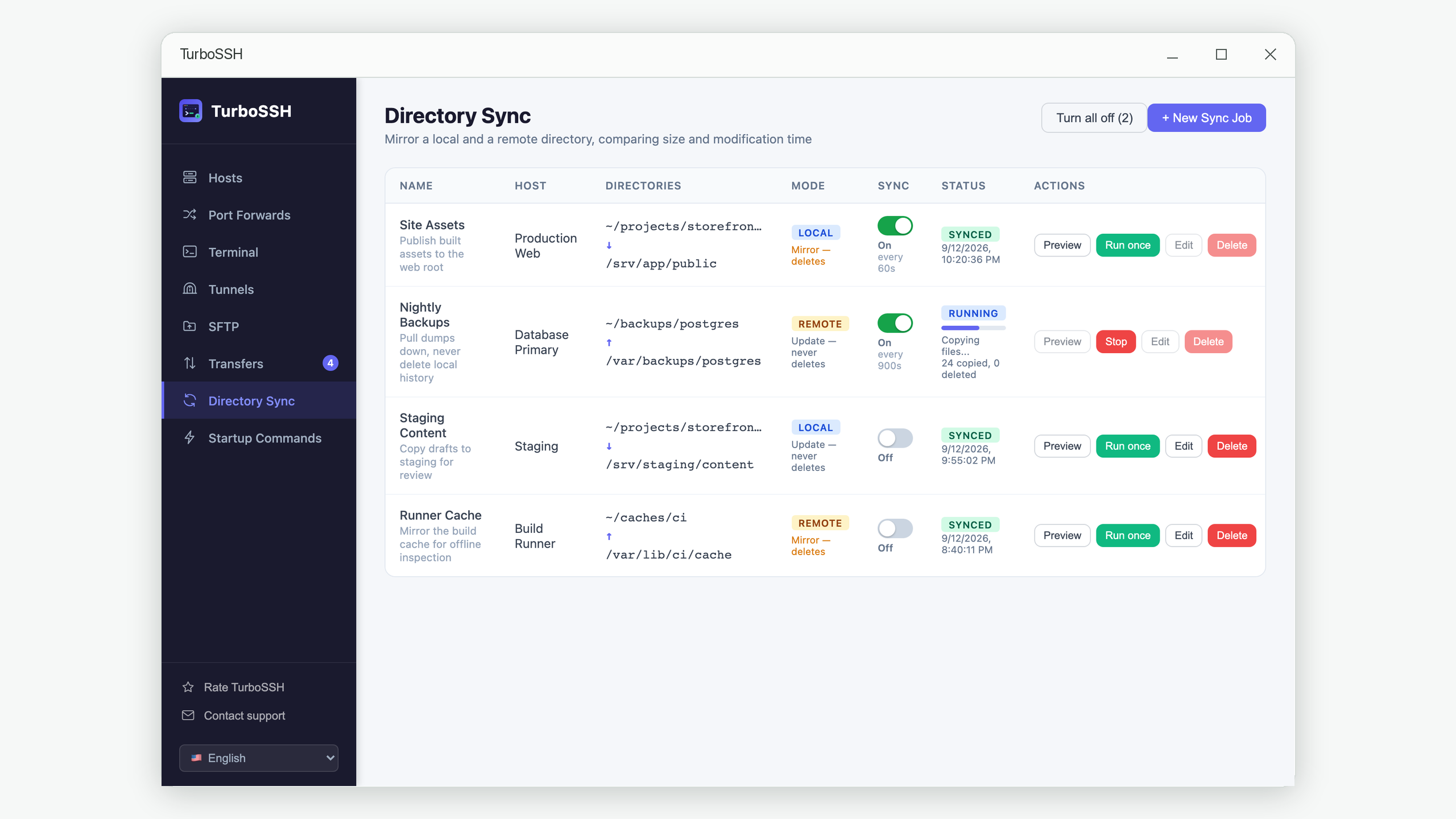
In TurboSSH each sync job holds the pair of folders, the primary side, the mode, and an optional repeat interval. Preview shows the plan, Run once executes it on demand, and the switch turns on repeating. When a job would delete files, it asks for confirmation first and states which side loses them.
On demand or on a timer
Running manually suits work with clear moments of completion. You finish a change, you sync, you check the result. Nothing happens that you did not ask for.
A timer suits folders that change continuously — logs, exports, anything generated. The tradeoff is that files move without you watching.
Two things make timed syncing safe. A run must never start while the previous one is still going, or a sync slower than its own interval starts stacking up on itself. And automatic syncing should not survive a restart: if it silently resumed when the application opened, it would begin changing files before you had even looked at the screen. Turning it on deliberately each session is the safer default, and it is how TurboSSH behaves.
Sync is not backup
This is worth stating plainly, because the two get conflated and the consequences are permanent.
A sync reproduces the primary side faithfully — including your mistakes. Delete a folder by accident and a mirror sync dutifully deletes it on the other side too. Save a corrupted file and the corruption is propagated. The copy is not a safety net; it is a second copy of whatever the primary currently is, including whatever just went wrong.
A backup keeps history. It lets you return to how things were last Tuesday. If losing these files would genuinely hurt, keep versioned backups as well — update mode is a partial hedge, since it never deletes, but it still overwrites.
Frequently asked questions
What happens if the folder does not exist?
The primary folder must exist, and a sensible tool refuses to run if it does not. Creating it automatically would mean syncing from an empty directory — which in mirror mode empties the other side. The non-primary folder is different: creating it is harmless, since an empty destination is exactly what a first sync expects.
Does syncing a large folder take a long time every run?
The comparison is fast; the transfer is proportional to what actually changed. The slow part on a high-latency connection is scanning the remote side, which is why good tools list the whole tree in one operation rather than asking about each directory in turn — the difference on a few thousand folders is minutes versus seconds.
Can I sync more than one folder pair?
Yes. Each pair is its own job with its own direction, mode and schedule, and they are independent. A typical setup mirrors a build folder to a web root while pulling logs down from the same server with a separate job.
What if a transfer fails partway through a sync?
Each file in a sync is an ordinary transfer, so the same rules apply — it can be resumed from where it stopped. Deletions should also happen after copying, never before, so that a failed run leaves extra files rather than missing ones. Extra files are an inconvenience; missing files can be a loss. See our guide to resumable transfers for how that works.
Can I edit a sync job while it is running?
You should not be able to, and a careful tool prevents it. A running job has already read its settings; changing them midway risks a run that half-follows the old configuration and half the new one. Turn it off, edit it, turn it back on.
In short
Dragging the whole folder over is slow. Picking files by hand is unreliable. A sync job is both fast and reliable because it compares rather than remembers.
The settings that matter are the two that decide what gets destroyed: which side is authoritative, and whether the other side's extra files are deleted or left alone. Get those right, preview the first run, and the rest takes care of itself.
Stop re-uploading the whole folder
TurboSSH compares a local and a remote folder, transfers only what changed, and shows you the plan before it runs.
Get TurboSSH on Microsoft Store